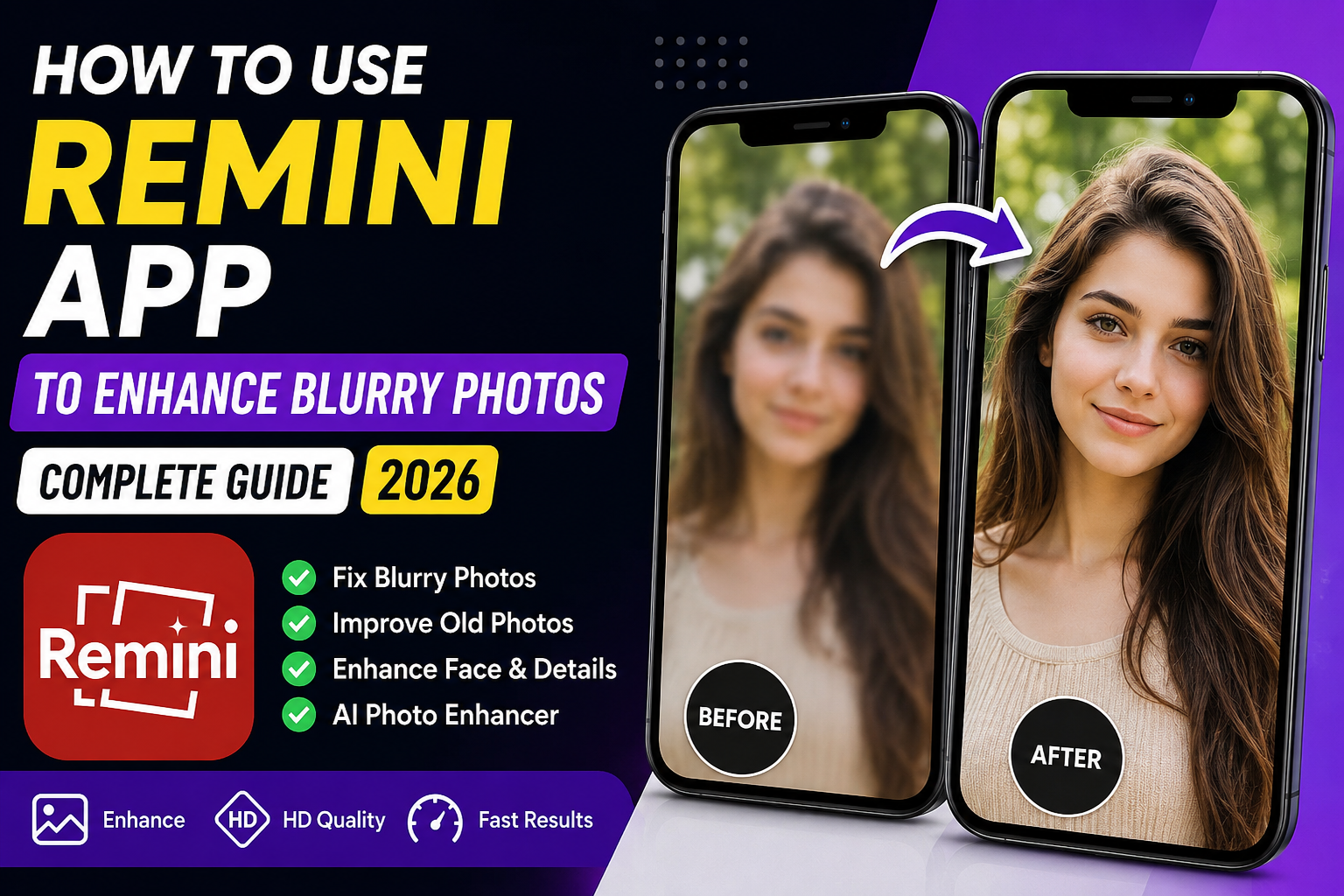
Have you ever looked at an old family photo and wished it looked just a little clearer? I had the same problem. A few months ago, I found some photos from an old Android phone that I used back in college. Most of them were blurry, noisy, and far from social-media quality. I almost deleted them, thinking they were beyond saving.
Then I decided to give Remini another try.
I had used it before, but only for quick edits. This time, I spent more time exploring its features, testing different settings, and comparing the results with the original photos. Some images looked surprisingly good, while others became a little overprocessed because I made a few beginner mistakes.
If you’re planning to use the Remini app in 2026, this guide will help you get the best results without wasting time or credits.
What Is Remini?
Remini is an AI-powered photo enhancement app available for Android and iPhone. Instead of applying simple filters, it uses artificial intelligence to rebuild blurry details, sharpen faces, reduce noise, and improve overall image quality.
It’s commonly used for:
- Restoring old family photos
- Improving blurry selfies
- Enhancing low-quality social media pictures
- Sharpening screenshots
- Fixing compressed WhatsApp images
- Improving profile pictures
The app continues to improve with frequent AI updates, making it one of the most popular photo enhancement apps available.
Why Do Photos Become Blurry?
Before fixing blurry photos, it helps to understand why they lose quality in the first place.
Some common reasons include:
- Camera shake
- Poor lighting
- Digital zoom
- Low-resolution cameras
- Images downloaded from social media
- Multiple compressions through messaging apps
No AI app can completely recover information that was never captured, but Remini often produces results that look much better than the original.
How to Download Remini
Installing the app only takes a few minutes.
Android
- Open Google Play Store.
- Search for Remini.
- Install the official app.
- Open it after installation.
iPhone
- Open the App Store.
- Search for Remini.
- Download and install it.
- Launch the app.
You can sign in using your Google account, Apple ID, or email.
How to Enhance Blurry Photos Using Remini
Here’s the process I personally follow.
Step 1: Open the App
After launching Remini, you’ll see different enhancement options.
Choose Enhance.
Step 2: Select Your Photo
Pick the blurry image from your gallery.
The app supports:
- Selfies
- Portraits
- Old photographs
- Landscape photos
- Pet photos
Step 3: Let AI Process the Image
Once you upload the photo, Remini starts processing it automatically.
Depending on your internet speed and image size, it usually takes between 10 and 30 seconds.
Step 4: Compare Before and After
This is my favorite part.
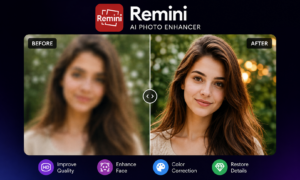
Use the comparison slider to see both versions.
Sometimes the improvement is dramatic, especially for portrait photos.
Step 5: Save the Enhanced Image
If you’re happy with the result:
- Tap Download
- Save it to your gallery
- Share it anywhere you like
My Real Experience Using Remini
Most people think AI magically fixes every photo.
That isn’t always true.
I tested around 40 old photos.
What Worked Really Well
- Portrait photos
- Selfies
- Face close-ups
- Passport-style photos
The AI restored facial details surprisingly well.
What Didn’t Improve Much
- Extremely pixelated images
- Photos taken in complete darkness
- Images where the face occupied only a tiny portion
Those pictures improved slightly but never looked perfect.
Best Settings for Better Results
Use the Original Photo
Avoid editing the image in multiple apps before uploading it.
The original file usually gives the AI more useful information.
Don’t Crop Too Much
If you crop heavily before enhancement, the AI has fewer details to work with.
Enhance first. Crop later.
Use Good Internet
Since Remini processes images online, a stable internet connection speeds things up.
Avoid Screenshots
Whenever possible, upload the original camera photo instead of a screenshot.
Common Mistakes Beginners Make
- Uploading extremely tiny images.
- Running the same photo through Remini multiple times.
- Expecting DSLR-level quality from every image.
- Ignoring the importance of the original lighting.
Is Remini Free?
Yes. Remini offers a free version with limited daily usage. Depending on the latest version, you may see ads before processing images. A premium subscription removes many limitations and unlocks additional AI features.
Can Remini Restore Old Family Photos?
Yes. This is one of the areas where the app performs best. It can sharpen faces, improve contrast, and make old memories look much clearer. However, AI-generated details may not always match the original perfectly.
Does Remini Work for Social Media Photos?
Absolutely. Many users enhance photos before uploading them to Instagram, Facebook, TikTok, LinkedIn, or using them as WhatsApp profile pictures.
Is Remini Safe?
Remini is widely available through official app stores. However, avoid uploading highly sensitive personal photos and always review the app’s privacy policy before using cloud-based AI tools.
Remini Pros and Cons
Pros
- Easy to use
- Fast AI processing
- Excellent face enhancement
- Great for restoring old photos
- Beginner-friendly interface
Cons
- Limited free usage
- Advertisements in the free version
- Requires an internet connection
- Some images may look overly smooth
- Premium subscription unlocks more features
Alternatives to Remini
- Adobe Express
- Canva AI Photo Enhancer
- Pixelcut
- Fotor AI Enhancer
- YouCam Enhance
Frequently Asked Questions
Does Remini work offline?
No. Most AI processing requires an internet connection.
Can Remini fix every blurry photo?
No. It improves many images, but severely damaged or extremely low-quality photos have limits.
Is Remini available for Android?
Yes. It is available for both Android and iPhone.
Does Remini reduce photo quality?
No. Its purpose is to improve image clarity, although aggressive AI processing may occasionally create an artificial appearance.
Is the premium version worth it?
If you edit photos regularly, the premium plan can be worthwhile because it removes daily limits and unlocks additional AI features.
Final Thoughts
The first time I used Remini, I expected every blurry photo to become crystal clear. That didn’t happen. After experimenting with different images, I realized the app works best when the original photo still contains enough detail for the AI to enhance.
For portraits, selfies, and old family photos, the improvement can be genuinely impressive. For heavily damaged or tiny images, it’s better to keep expectations realistic.
If you’ve never tried Remini before, start with a few important photos, compare the results carefully, and avoid overprocessing. A subtle enhancement usually looks much more natural than pushing the AI to its limits.
Whether you’re restoring old memories or simply making your next profile picture look sharper, Remini remains one of the easiest AI photo enhancement apps to use in 2026.
Learn more about Remini by visiting the official Remini website.
You may also like: HD Camera – DSLR Professional Camera App Review (2025)
Looking for more AI apps and tech guides? Visit our ZC2Earning homepage.