I almost paid for Gemini before I even figured out how much of it was already sitting in my Google account for free. True story. I signed up for a paid AI plan back in January because I assumed the free version of Google Gemini AI would be some watered-down toy version, barely usable for anything real. Three weeks later I cancelled it, because it turned out the free tier could handle almost everything I was actually doing day to day.
If you’re using Gemini AI to find jobs, create a professional CV, prepare for interviews, or improve your daily productivity, you’ll find plenty of helpful resources here on ApkRai. We’ve published practical guides on AI tools, career tips, online earning, and job preparation that work really well alongside Gemini. If you’re just getting started, these free resources can save you a lot of time.
So if you’re wondering how to use Google Gemini AI for free without accidentally handing Google your credit card, this is the guide I wish someone had handed me back then. No fluff, no “unlock the power of AI” nonsense. Just what I actually did, what tripped me up, and how you can get it running in the next ten minutes.
If you’re the kind of person who likes using free AI tools to speed up job hunting — polishing a CV, drafting a cover letter, prepping for an interview — you’ll probably also want to check out our latest job listings and our free CV writing guide while you’re at it.
Why People Get Confused About Gemini’s Free Tier
Here’s the thing that trips almost everyone up: Google doesn’t market the free tier very loudly. You’ll land on their pricing page, see plans starting around $7.99 or $19.99 a month, and assume you need one of those just to get started. I made that exact mistake. The pricing page is built to sell subscriptions, not to explain the free option — which honestly makes sense from a business standpoint, but it’s frustrating if you just want to try the thing first.
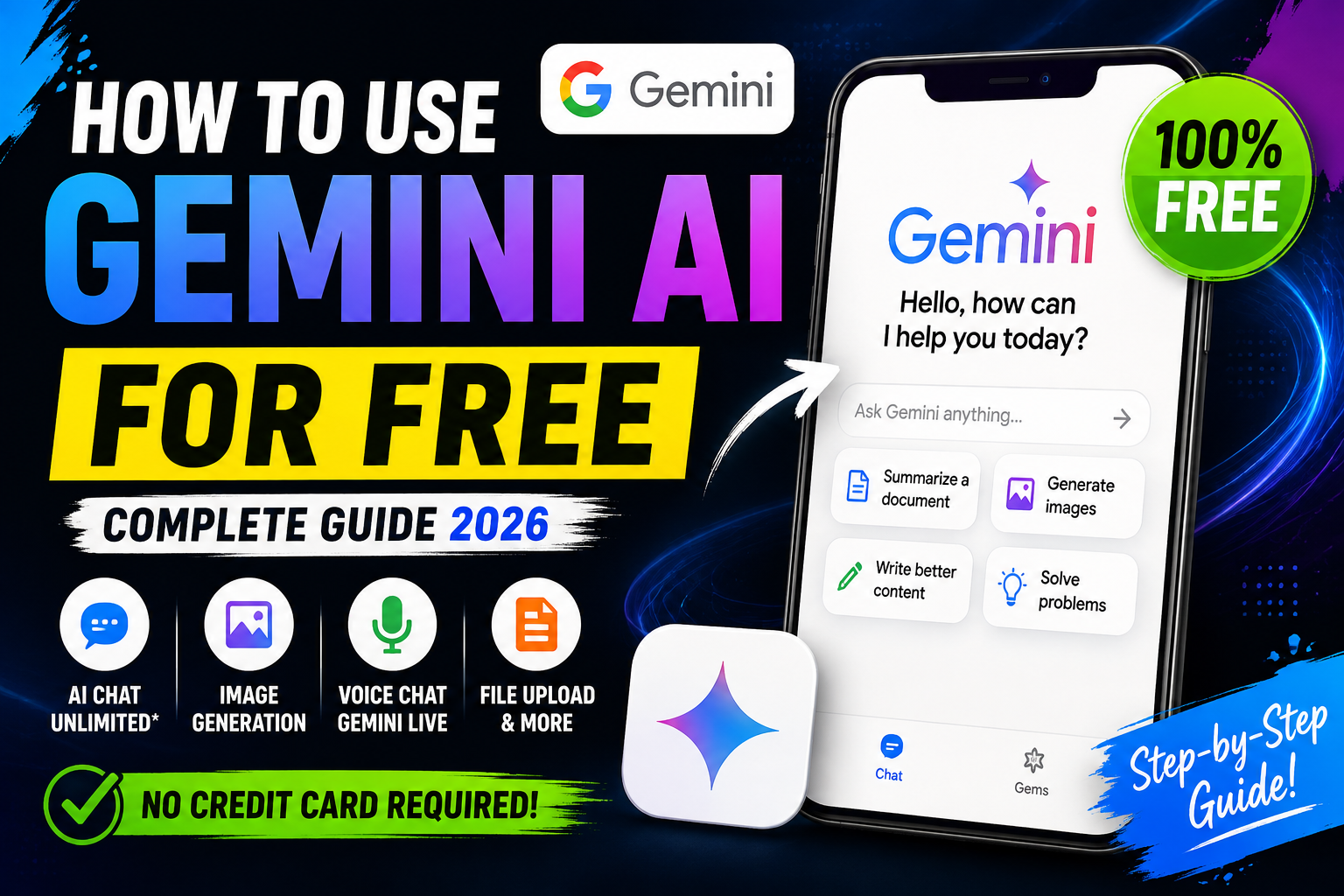
The reality is that Gemini’s free plan (sometimes just called the Basic tier inside Gemini Apps) has quietly become one of the more generous free AI offerings out there. You get chat, image generation, voice conversations through Gemini Live, document uploads, and even a handful of Deep Research reports every month — all without typing in a card number.
What’s Actually Included in the Free Version
Before you sign up for anything, it helps to know what you’re walking into. Based on my own use (and some digging through Google’s own support docs, because their release notes change more often than I’d like), here’s what the free tier generally covers:
- Unlimited-ish access to Gemini’s fast default model for everyday chat, writing, and coding help
- A limited daily allowance of the more powerful reasoning model for harder questions
- Image generation and basic editing, capped per day
- Gemini Live, Google’s voice conversation mode
- Document and PDF uploads for summarizing or asking questions about files
- A small monthly quota of Deep Research reports
- Basic integration with Gmail, Docs, and Drive if you’re already in that ecosystem
The caps move around depending on server load and whatever Google is testing that month, so I won’t promise you an exact number here — check the in-app usage indicator, it usually tells you how close you are to your daily limit before you hit it.
Step-by-Step: How I Set Mine Up
Okay, let’s get into the actual walkthrough. This part is genuinely simple, which surprised me after all the pricing-page confusion.
Step 1: Go Straight to gemini.google.com
Skip the pricing page entirely. Head directly to Gemini’s web app or download the mobile app from the Play Store or App Store. If you already have a Google account (Gmail, basically), you’re already halfway there.
Step 2: Sign In With Your Existing Google Account
No new account, no separate signup form. Just log in with the same Gmail you already use. This part took me about fifteen seconds.
Step 3: Ignore the Upgrade Prompts (For Now)
Gemini will nudge you toward a paid plan pretty quickly — a little banner, a popup, sometimes a “try Pro free for a bit” offer. You can close all of that. The free chat window works the moment you land on it.
Step 4: Start Chatting and Watch Your Usage
Just start typing. Ask it real questions — the kind you’d actually use day to day, not test prompts. I asked mine to help rewrite an awkward email, then had it summarize a ten-page PDF I’d been avoiding reading. Both worked fine on the free tier.
Step 5: Try the Extra Features One at a Time
Once you’re comfortable with basic chat, poke around at image generation and Gemini Live (the voice mode — it’s genuinely fun to talk to, if a little strange the first time). Each of these has its own separate daily cap, so running out of image generations doesn’t mean you’re locked out of chat.
If You’re a Developer: The Free API Route
If you’re building something rather than just chatting, Gemini also has a separate developer path through Google AI Studio. You get an API key tied to your Google account, with rate-limited free access to the Flash models — no credit card required there either. This is genuinely one of the more generous free API tiers among the major AI labs right now, since most competitors either require billing info upfront or cut free access off after a trial period. I used it to prototype a small script that auto-tagged photos from a weekend trip, and it never asked me to pay a cent.
Worth noting: the free API tier is meant for prototyping and light experimentation, not production traffic. If your side project starts getting real usage, you’ll eventually want to look at Vertex AI or a paid API plan.
Common Mistakes I Made (So You Don’t Have To)
A few things tripped me up early on, and I see other people making the same errors in forums and comment sections constantly.
- Assuming the free tier was crippled. I avoided it for weeks thinking it’d be useless. It wasn’t.
- Signing up for a paid trial “just to test features.” Most of what I wanted to test was already free. Read the feature list first.
- Forgetting free plans have daily resets. If you hit a cap, it’s not gone forever — it usually resets after 24 hours, so just check back the next day instead of panicking.
- Mixing up the consumer app and the developer API. They’re separate products with separate limits. Using one doesn’t affect your quota on the other.
- Not checking the usage indicator. Gemini shows you how much of your daily allowance is left if you know where to look — it saved me from getting cut off mid-task more than once.
By the way, if you’re using tools like Gemini to help you apply for jobs faster, it pairs really well with a solid interview preparation checklist — AI can help you draft answers, but you still need to practice saying them out loud.
Free vs Paid: Do You Actually Need to Upgrade?
Honestly? For most casual and even semi-regular use — writing help, research, image generation for personal projects, general questions — the free tier holds up. Where I noticed the free plan start to strain was during a week I was doing heavy back-to-back research for a work project. I burned through the Deep Research allowance in two days and had to wait for the reset.
If that becomes a regular pattern for you, that’s the actual signal to consider a paid plan — not before. Google’s own official Gemini site lays out the paid tiers if you get to that point (look under account settings for the current plan comparison), but I’d genuinely recommend living inside the free tier for a couple of weeks first to see if you even need more.
Practical Tips That Actually Help
- Use Gemini’s fast default model for everyday tasks and save your limited “power model” queries for genuinely hard problems — coding bugs, complex research, that kind of thing.
- If you’re uploading documents a lot, keep files reasonably sized. Huge PDFs sometimes choke or get summarized poorly.
- Try Gemini Live once even if voice AI feels awkward to you. It’s surprisingly useful for brainstorming out loud while doing something else, like folding laundry (yes, I’ve done this).
- Bookmark the usage/limits page inside settings so you’re not caught off guard mid-task.
- If you’re a student, check whether any education-linked free trial offers are currently running — these have popped up periodically and can extend your access to higher-tier models.
Frequently Asked Questions
Is Google Gemini AI really free to use?
Yes. The core Gemini experience — chat, image generation, document uploads, and voice mode — is available without a subscription or credit card. There are daily and monthly usage caps, but you don’t need to pay to get started.
Do I need a credit card to use Gemini for free?
No. Signing in with an existing Google account is enough. You won’t be asked for payment details unless you deliberately choose to upgrade to a paid plan.
What’s the difference between free Gemini and paid Gemini?
The paid plans mainly raise your daily limits, give more consistent access to the stronger reasoning model, expand storage, and unlock features like longer context windows and higher-quality video generation. The core assistant functions the same either way.
Can developers use Gemini’s API for free?
Yes, through Google AI Studio. It offers a rate-limited free tier suitable for prototyping and small projects, separate from the consumer app’s usage limits.
Will the free tier limits change?
Probably, at some point. Google has adjusted free-tier limits before, sometimes loosening them and sometimes tightening them. It’s worth checking the in-app limits occasionally rather than assuming they’re fixed forever.
Final Thoughts
I went into this expecting to be disappointed by the free version and ended up sticking with it far longer than I planned to. If you’re on the fence about whether to pay for an AI subscription, my honest advice is: don’t, not yet. Sign in with your Google account, poke around the free tier for a week or two, and only reach for your wallet once you actually hit a wall that matters to you. Most people never do.