There is nothing more annoying than plugging your Android phone in at 10% battery, checking it half an hour later, and seeing only 20%. The charger is connected, the battery icon is moving, but the phone seems to be charging at a snail’s pace.
I have run into this problem myself, and the frustrating part is that the cause isn’t always obvious. Sometimes the charger is the problem. Sometimes it is the USB cable. In other cases, the phone is simply too hot or fast charging is turned off.
If you’re wondering how to charge Android phone faster, the good news is that you can check several things yourself before spending money on a new battery or taking the phone to a repair shop.
In this guide, I’ll walk you through 10 practical ways to improve Android charging speed, explain why your phone may be charging slowly, and show you which common charging mistakes are worth avoiding.
Quick Answer: How to Charge Android Phone Faster
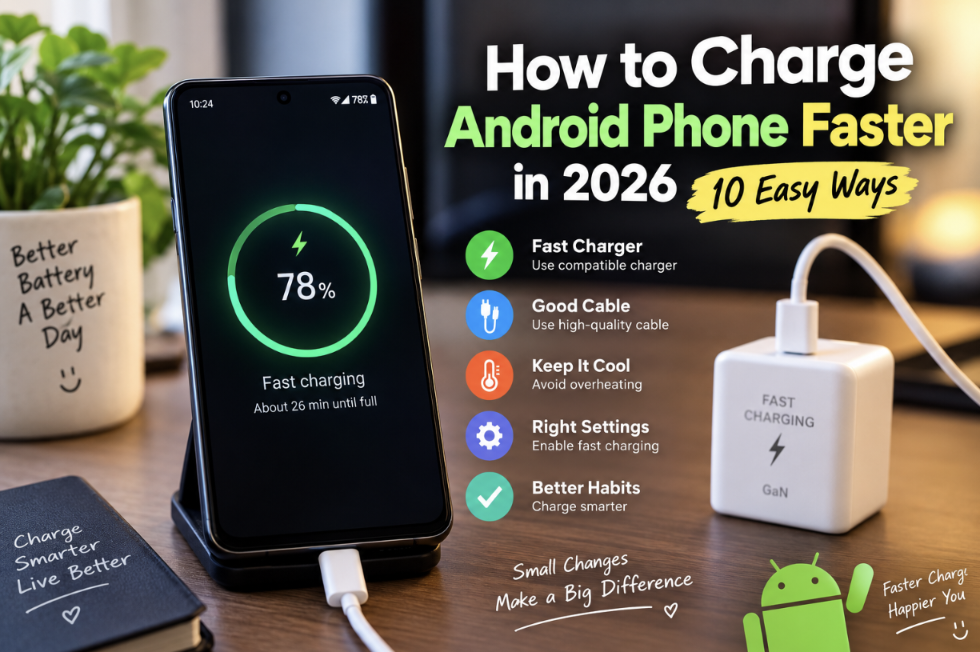
To charge an Android phone faster, use a compatible fast charger and high-quality cable, enable fast charging if your phone supports the setting, keep the phone cool, avoid gaming while charging, and turn the screen off.
If your phone suddenly becomes much slower than usual, test another compatible charger and cable first. If the problem continues, check the charging port and consider getting the phone inspected.
Why Is My Android Phone Charging Slowly?
Before trying every possible fix, it helps to understand what controls charging speed.
Your phone doesn’t simply accept whatever wattage is written on the charger. The phone, charger, cable, battery temperature, charging protocol, and internal charging hardware all work together.
For example, imagine your phone supports 33W fast charging but you’re using an old 10W adapter. The phone cannot charge at 33W because the charger isn’t providing enough power.
The opposite situation is also worth understanding. If you connect a 100W charger to a phone designed for a much lower charging speed, the phone normally won’t suddenly start charging at 100W. The phone controls how much power it accepts.
Heat is another major factor. When a phone becomes too warm, its charging system can reduce power to protect the battery and internal components.
That’s why slow charging doesn’t automatically mean your battery is damaged.
How to Charge Android Phone Faster: 10 Easy Ways
1. Use the Original or Compatible Fast Charger
The first thing I would check is the charger.
If your phone came with a fast charger, use it whenever possible. If you need a replacement, choose a reputable charger that supports the charging standard and power requirements of your specific phone.
A charger from an older phone may work perfectly for basic charging but still be much slower than the charger your current device supports.
Also, don’t choose a charger based only on the biggest wattage number printed on the box. Compatibility matters just as much as wattage.
2. Replace a Damaged or Low-Quality USB Cable
This is one of the easiest problems to overlook.
You might have a 33W or 67W charger sitting beside you, but if the cable is damaged or isn’t suitable for the required charging power, you may not get the expected speed.
Look closely at your cable. If it is bent near the connector, becomes unusually hot, disconnects when moved, or has visible damage, replacing it is a sensible first step.
Remember that USB-C does not automatically mean every cable has identical capabilities. Different cables can support different power and data specifications.
3. Turn On Fast Charging in Android Settings
Some Android phones provide a setting for fast charging.
The exact name and location vary between manufacturers, but you can usually check:
- Open Settings.
- Tap Battery.
- Look for Charging settings or More battery settings.
- Find an option such as Fast charging or Super fast charging.
- Enable it if it is available and disabled.
Not every Android phone has a manual fast-charging switch. Some devices automatically activate fast charging when a compatible charger is connected.
4. Stop Gaming While the Phone Is Charging
If you are trying to charge quickly, this is a big one.
Playing a demanding game while charging means the phone is consuming power at the same time it is receiving it. The processor and graphics hardware also generate additional heat.
Video recording, GPS navigation, mobile hotspot, and heavy streaming can have a similar effect.
If you need a quick battery boost, connect the charger and leave the phone alone for a while. Even 20 or 30 minutes without heavy use can make a noticeable difference.
5. Keep Your Phone Cool While Charging
Heat can cause charging speed to drop.
If your phone feels hot, move it away from direct sunlight and avoid demanding apps. If a thick case seems to trap a lot of heat, temporarily removing it while charging may help.
Don’t put a hot phone inside a freezer or use extreme cooling methods. A sudden temperature change can cause condensation and create additional problems.
A normal, cool room and good airflow are usually enough.
6. Clean the Charging Port Carefully
Your phone spends a lot of time in pockets and bags, so dust and lint can eventually collect inside the charging port.
A dirty port can prevent the cable from making a proper connection. You may notice that the cable feels loose, charging disconnects when the cable moves, or fast charging doesn’t activate anymore.
If you suspect the port is dirty, clean it carefully and gently. Avoid pushing metal objects into the port because you can damage the contacts.
If the port is physically damaged or badly blocked, professional inspection is safer.
7. Use Airplane Mode When You Need a Quick Charge
If you don’t need calls or mobile internet for a short period, Airplane Mode can reduce some background wireless activity.
It won’t magically double your charging speed, but it can reduce the amount of power your phone is using while charging.
You can also manually turn off mobile data, Bluetooth, GPS, or hotspot when you don’t need them.
8. Don’t Expect Maximum Speed From 0% to 100%
This is something many people misunderstand about fast charging.
A phone usually doesn’t charge at its maximum advertised speed for the entire charging cycle.
Charging can be faster when the battery level is low. As the battery gets closer to full, the phone may reduce charging power to control temperature and battery stress.
So if your phone charges quickly from 20% to 60% and then becomes noticeably slower near 80% or 90%, that does not necessarily mean something is wrong.
9. Turn the Screen Off While Charging
The display uses a significant amount of power, especially at high brightness.
If you’re watching videos, scrolling social media, or playing games while the phone is charging, part of the incoming power is immediately being consumed.
For a faster practical charge, connect the charger, lock the phone, and let it sit.
It’s a simple habit, but when you’re in a hurry, every little bit helps.
10. Check the Battery, Charging Port, and Hardware
If you’ve already tested different compatible chargers and cables and your phone still charges extremely slowly, the problem may be hardware-related.
An aging battery, damaged USB port, faulty charger, or internal charging component can all cause charging problems.
Pay special attention if:
- The phone gets unusually hot while charging.
- Charging stops randomly.
- The cable only works at a certain angle.
- The battery percentage barely increases.
- The phone suddenly started charging much slower than before.
In these situations, it’s better to have the phone inspected rather than repeatedly buying random chargers.

How to Check If Fast Charging Is Working
Many Android phones display a charging message on the lock screen when a compatible fast charger is connected.
Depending on the manufacturer, you may see wording such as Fast Charging, Super Fast Charging, Turbo Charging, or another brand-specific term.
If you’re unsure, perform a simple test. Note the battery percentage, connect your normal charger, leave the phone unused for 15 minutes, and check the percentage again.
Then repeat the test using another known-good compatible charger and cable.
This kind of real-world comparison is often more useful than relying only on the wattage printed on the adapter.
What Charger Wattage Is Best for an Android Phone?
There isn’t one wattage that is best for every Android phone.
If your phone supports 18W charging, a 100W charger won’t necessarily make it charge at 100W. The phone has its own charging limit and decides how much power to draw.
Likewise, if your phone supports 67W charging but you’re using a 10W adapter, you’re limiting the available charging speed.
Before purchasing a charger, check the official specifications for your exact phone model.
For general information about Android devices and charging-related settings, the official Google Android Help Center is a useful authority source.
Common Mistakes That Make Android Charging Slow
Sometimes the charger isn’t the problem at all. Our charging habits can also make things slower.
- Using an old low-power adapter.
- Using a damaged USB cable.
- Gaming heavily while charging.
- Charging under a pillow, blanket, or in direct sunlight.
- Keeping the screen on at maximum brightness.
- Ignoring a loose charging port.
- Assuming every USB-C cable supports the same charging speed.
- Expecting the phone to charge at maximum speed right up to 100%.
- Buying a charger only because it has a higher wattage number.
Can You Make an Old Android Phone Charge Faster?
Sometimes you can improve it, but there are limits.
If the phone supports a faster charging standard than the charger you’re currently using, switching to the correct compatible charger can make a noticeable difference.
However, you cannot turn a phone designed for basic charging into a 100W fast-charging phone simply by buying a 100W adapter.
The phone’s charging hardware determines its maximum supported speed.
If the battery has become badly degraded, a proper battery replacement may restore normal charging behavior. Battery replacement should be handled by a qualified technician using a suitable replacement battery.
Best Settings for Faster Android Charging
If your Android phone provides these options, the following setup can help reduce unnecessary power consumption while charging:
- Enable Fast Charging.
- Turn the screen off.
- Reduce unnecessary background activity.
- Disable mobile hotspot when it isn’t needed.
- Turn off Bluetooth or GPS if you aren’t using them.
- Use Airplane Mode when you don’t need network connectivity.
- Keep the phone at a comfortable temperature.
These settings won’t increase the phone’s hardware charging limit, but they can reduce the amount of power the phone consumes during charging.
Do Charging Apps Really Make Android Charge Faster?
Be careful with apps that promise to dramatically increase charging speed.
An app cannot magically change the physical charging limit of your phone or turn a 10W charger into a 45W charger.
Some battery-monitoring apps can show information about temperature, battery percentage, or charging behavior. That can be useful for troubleshooting, but you shouldn’t expect an app to create additional charging power.
If an app claims that your phone will charge several times faster simply by installing it, I’d be skeptical.
Frequently Asked Questions About Android Fast Charging
How can I charge my Android phone faster?
Use a compatible fast charger and suitable cable, enable fast charging if your phone provides the option, keep the phone cool, avoid heavy apps while charging, and turn the screen off.
Why is my Android phone charging slowly even with a fast charger?
The cable may not support the required charging speed, the phone may be too hot, fast charging may be disabled, or the charger may not support your phone’s charging protocol. A dirty or damaged charging port can also cause slow charging.
Does Airplane Mode make Android charge faster?
It can help slightly because wireless connections and background network activity are reduced. The actual difference depends on the phone and how much power it normally uses.
Does turning off an Android phone make it charge faster?
Turning the phone off stops most normal background activity, so less power is consumed while charging. However, the maximum charging speed is still controlled by the phone’s hardware, charger, cable, and temperature.
Can a different USB cable make Android charge faster?
Yes. If your current cable is damaged or isn’t suitable for the charging power your phone requires, replacing it with a compatible, high-quality cable can improve charging performance.
Why does my Android phone charge fast at first and slow down later?
This is usually normal. Charging systems often reduce power as the battery gets closer to full to manage heat and battery stress.
Can I use a higher-watt charger with my Android phone?
A compatible higher-watt charger can often be used, but the phone normally draws only the amount of power it is designed to accept. A higher wattage rating does not automatically mean the phone will charge faster.
Should I use my Android phone while charging?
You can, but demanding activities such as gaming, navigation, video recording, and hotspot use can increase power consumption and heat. If you want the fastest practical charging, leave the phone’s screen off and avoid heavy tasks.
Final Thoughts
Finding out how to charge Android phone faster doesn’t require a secret app or some complicated trick.
Start with the basics: use the right charger, use a suitable cable, check the fast charging setting, keep the phone cool, and avoid heavy use while charging.
If your phone suddenly started charging much slower than it used to, don’t ignore the change. Test another compatible charger and cable first. If the problem remains, inspect the charging port and consider having the battery or charging hardware checked.
For most users, the solution is surprisingly simple. The right charger and cable, combined with sensible charging habits, can make your Android phone much easier to live with.
Article updated for 2026 by apkRai.